

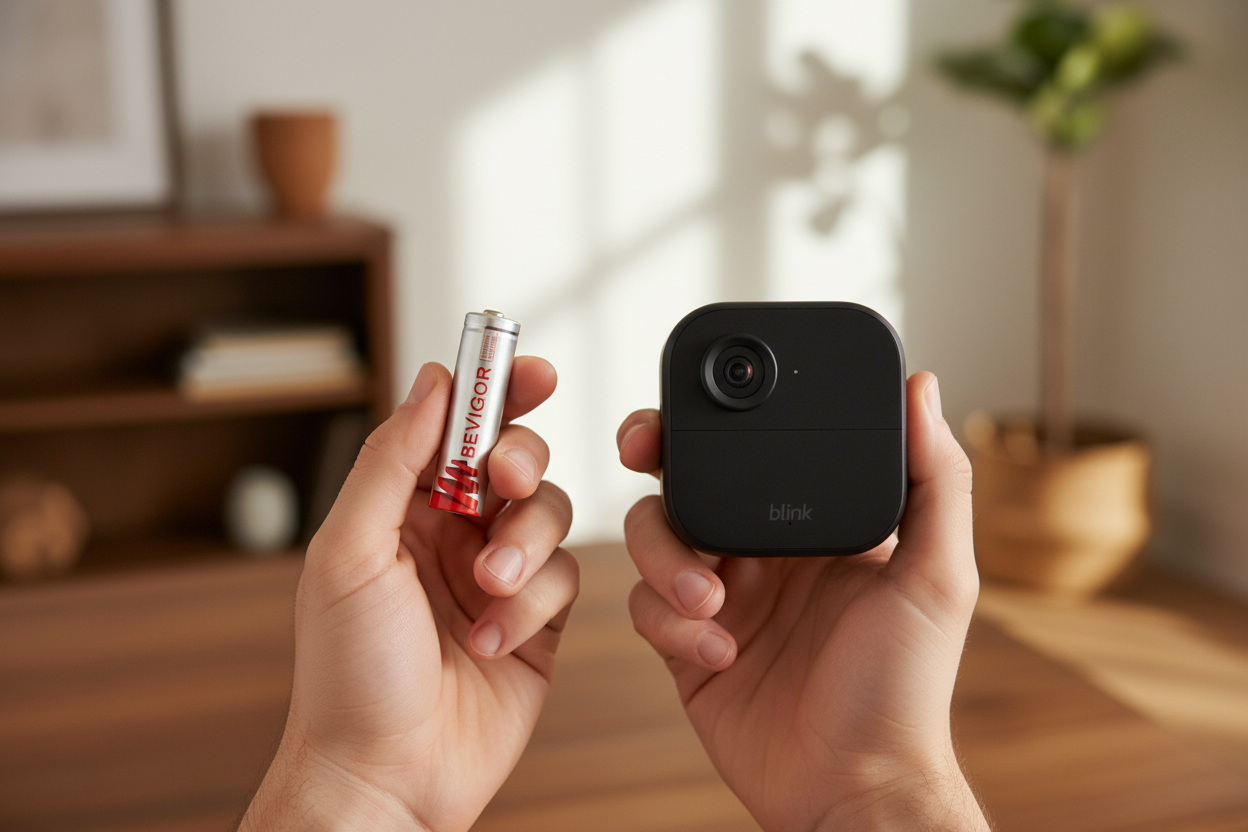
A Blink camera flashing red with new batteries does not automatically mean the batteries are dead. On several Blink models, a red light means the camera is in setup mode or has lost its network connection. On some older battery-powered models, a specific series of red flashes can indicate failing batteries. The right diagnosis depends on your model, the flash pattern, and when the light appears.
Start by identifying the camera and watching the LED for at least 15 seconds. Do not reset or delete the camera immediately. A normal setup signal can look like a fault if you treat every red flash as a battery warning.
What Does the Red Light Mean on Your Blink Model?
Blink assigns different meanings to red LEDs across its product line. Its current red-light support guide provides the model-specific reference.
| Model or situation | Red-light pattern | Likely meaning | First action |
|---|---|---|---|
| Blink Outdoor 4 | Flashing red during setup or after changing a system or Wi-Fi | The camera is ready to connect or reconnect | Continue the setup or network-change process in the Blink app |
| Blink Video Doorbell | Red ring flashes while seeking a connection | The doorbell is ready to connect during setup or a Wi-Fi/system change | Follow the model-specific setup flow |
| Blink Mini or Mini 2 | Red during startup or while disconnected | The camera is starting or is not connected to the internet | Power-cycle it and check the network |
| Blink Outdoor or Indoor (3rd Gen), XT2, or XT | Five long flashes after inserting batteries, followed by one short flash every three seconds | Startup followed by waiting for an internet connection | Complete setup or troubleshoot connectivity |
| Outdoor/Indoor (3rd Gen), XT2, or XT | One quick red flash every three seconds after the camera was previously working | The camera is disconnected from the internet | Check the Sync Module and Wi-Fi |
| Older battery-powered models | Five or six red flashes after the blue recording light goes out | Blink identifies this as a failing-battery pattern | Confirm that both cells are fresh and meet the model requirement |
A brief red flash during motion detection can also be normal on some older models. The timing matters more than the color alone.
Why New Batteries May Not Stop the Red Light
The camera is waiting for setup or reconnection
If you replaced the batteries after moving the camera, changing the Wi-Fi password, replacing a router, or moving the device to another Blink system, the red light may be a connection signal. Fresh batteries give the camera power, but they do not supply network credentials or reconnect an offline Sync Module.
For Outdoor 4, a flashing red light is expected in setup mode or while changing systems or Wi-Fi. For older Outdoor and Indoor cameras, five long flashes immediately after installation can also be normal; the repeating flash that follows means the camera is still trying to connect.
The camera and Sync Module are not communicating
In the Blink app, look at both the camera and the Sync Module before changing anything else. If the Sync Module is offline, restore that connection first. Blink’s official offline troubleshooting sequence starts with the Sync Module, followed by a camera power cycle and a Wi-Fi check.
Not every Blink model requires a Sync Module, so follow the app and documentation for your exact device. If you are working with an Outdoor 4 installation, the BEVIGOR Outdoor 4 setup and Wi-Fi guide provides broader installation context. Use the official Blink instructions as the final authority for model behavior.
The batteries are new but not the specified type
“New” describes age, not chemistry or voltage. Blink states that its named battery-powered cameras are designed for size AA 1.5-volt lithium non-rechargeable batteries. Its current camera power guide also notes that some models use USB, USB-C, hardwired power, or model-specific solar accessories.
Check the label on each cell rather than relying on the package color or the word “lithium.” AA-sized batteries can use different chemistries and nominal voltages. Do not recharge any cell marked non-rechargeable, and do not assume an AA-sized rechargeable lithium-ion battery is interchangeable with a 1.5-volt primary lithium AA.
One battery is reversed or not making contact
Turn the camera off or follow the model’s removal instructions before reopening the compartment. Check the polarity diagram and confirm that both cells face the correct direction. Make sure the terminals are seated against the contacts and that the cover closes normally.
Do not scrape, bend, or improvise repairs to the contacts. If you see corrosion, swelling, heat damage, a torn wrapper, or a deformed compartment, stop using the device and follow the camera and battery manufacturers’ support guidance.
A Step-by-Step Check for a Blink Camera Flashing Red With New Batteries
1. Identify the exact model
Check the device name in the Blink app or the model information on the camera. Do not apply Mini instructions to an Outdoor camera or older XT instructions to an Outdoor 4. The same red color can mean different things.
2. Record the flash pattern
Note what happens immediately after power is restored:
- Does the camera show five long flashes?
- Does it flash once every three seconds?
- Does the red light appear only after the blue recording light?
- Is it a flashing light or a steady red light?
- Did the pattern begin after a router, password, system, or location change?
This observation often separates normal setup behavior from an offline state or battery warning.
3. Confirm the power source
For a model that Blink specifies as battery-powered, verify both cells against the current manual or support page. Install a fresh matched pair of the required size, chemistry, and voltage. Replace both cells together; do not mix old and new batteries or combine different chemistries.
If you need a visual refresher on opening the device, checking polarity, and verifying operation after installation, see the BEVIGOR Blink camera battery replacement guide.
4. Power-cycle the camera
Blink’s current guidance for several red-light and offline conditions is to remove the batteries for five seconds and then reinsert them. After restoring power, wait about 30 seconds and observe the full LED sequence rather than reacting to the first flash.
For a USB-powered Mini camera, unplug the power cable instead of removing batteries. Follow the official instructions for your exact model.
5. Check the app, Sync Module, and internet connection
Confirm that other devices can reach the internet. Then check whether the Blink app shows the camera or Sync Module as offline. If you recently changed the Wi-Fi name or password, update the Blink device’s network settings instead of repeatedly replacing batteries.
If the camera is far from its Sync Module or access point, test it closer to the network equipment. This is a diagnostic step, not proof that the permanent mounting location is suitable.
6. Resume the correct setup flow
For a new camera, use Add Device in the Blink app and follow the prompts. For a camera that began flashing after a Wi-Fi or system change, follow Blink’s network-change instructions. Avoid deleting the device or performing a reset until the official instructions for your model call for it; deletion can create extra setup work without fixing the original network problem.
7. Contact Blink Support when the pattern does not resolve
Blink advises contacting support when a red LED stays on or expected LED behavior does not return. Escalate rather than repeating resets if:
- a steady red light remains;
- the camera never shows the expected startup sequence with the specified power source;
- the compartment or contacts appear damaged;
- the camera remains offline after the Sync Module, power cycle, Wi-Fi, and setup checks;
- the app reports a hardware or update error.
What Not to Do
- Do not assume every red flash means low battery.
- Do not mix lithium and alkaline cells, rechargeable and non-rechargeable cells, or old and new batteries.
- Do not recharge a primary lithium battery.
- Do not use a different voltage simply because the battery fits the AA compartment.
- Do not perform repeated factory resets without model-specific instructions.
- Do not claim a battery will provide a fixed runtime. Camera settings, motion activity, Live View use, signal conditions, temperature, device age, and model all affect service life.
Choosing a Replacement Battery After the Connection Is Fixed
Resolve the connection or setup issue before buying another set of batteries. If your exact model calls for AA 1.5-volt lithium non-rechargeable cells, compare that requirement with the product label and current documentation.
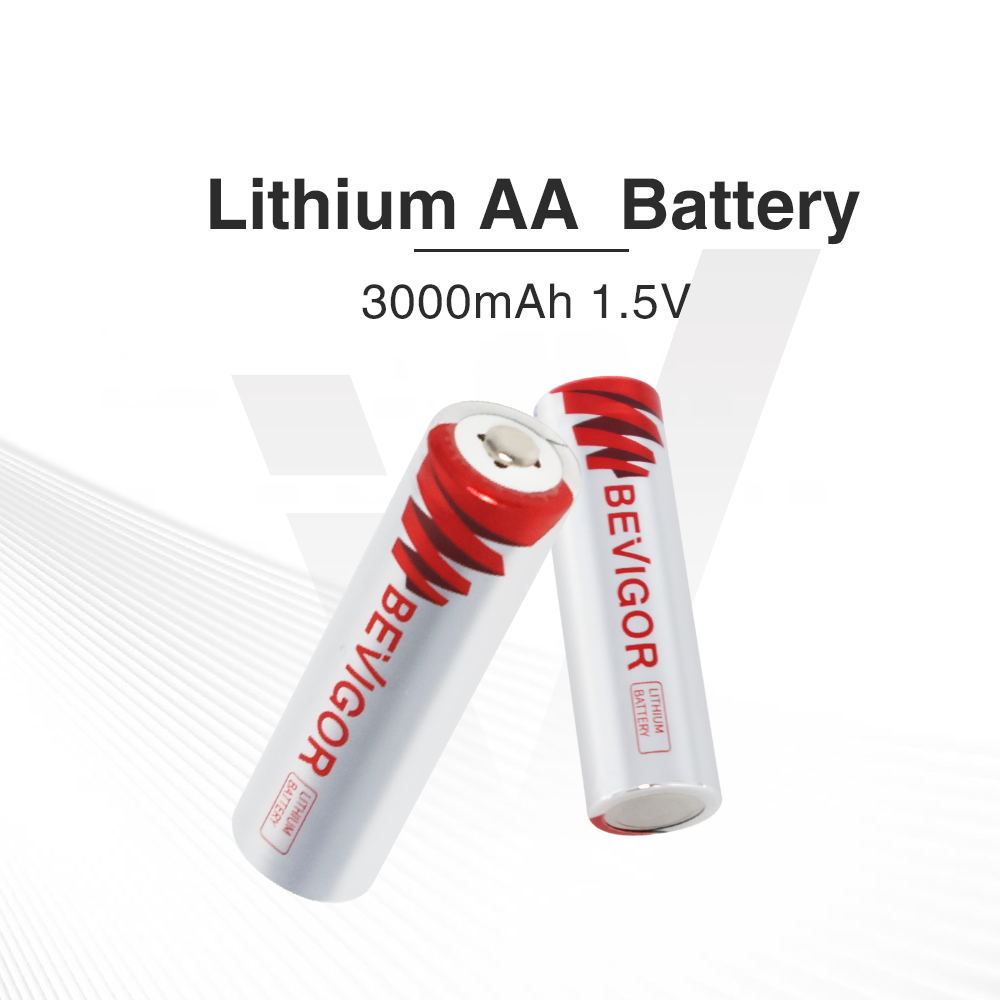
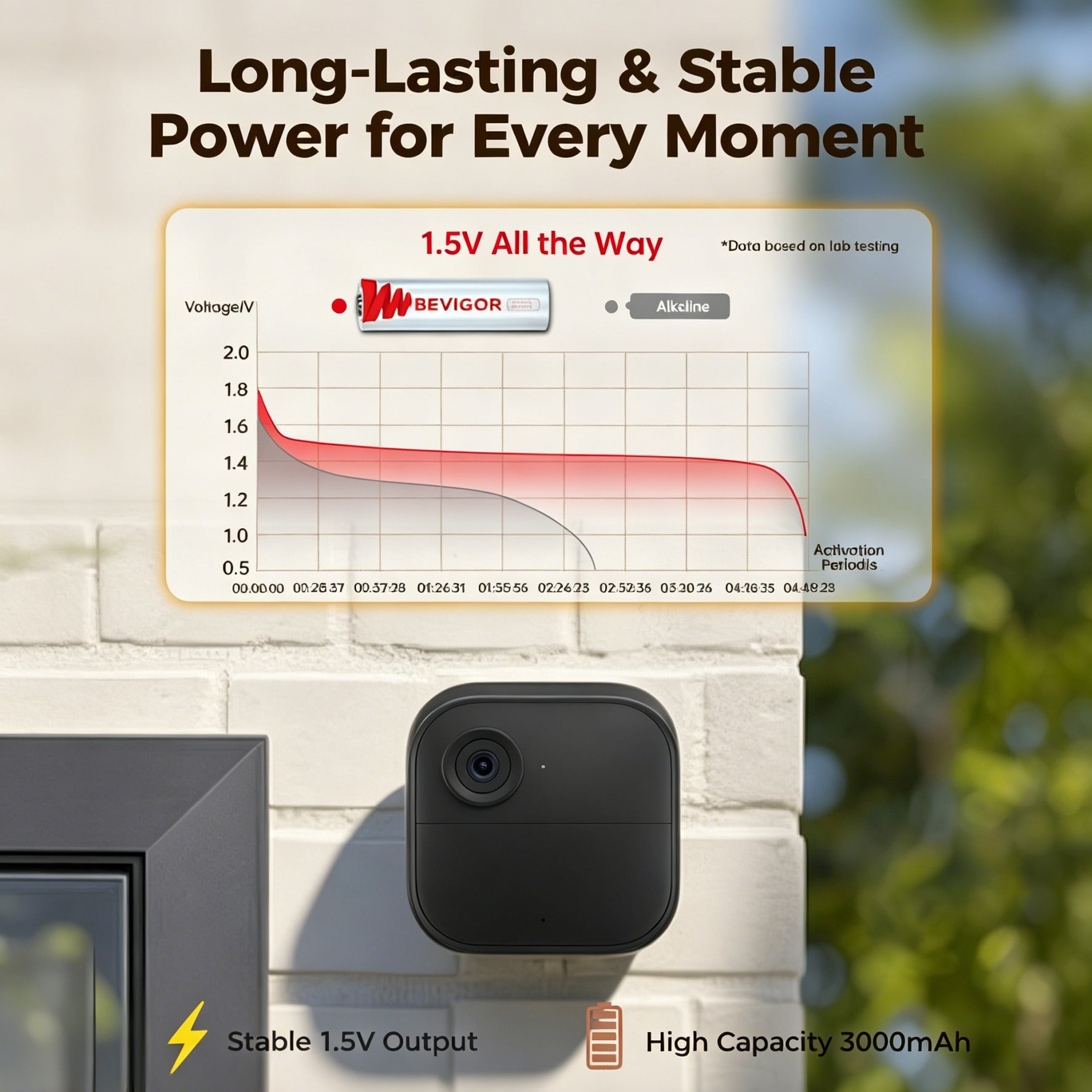
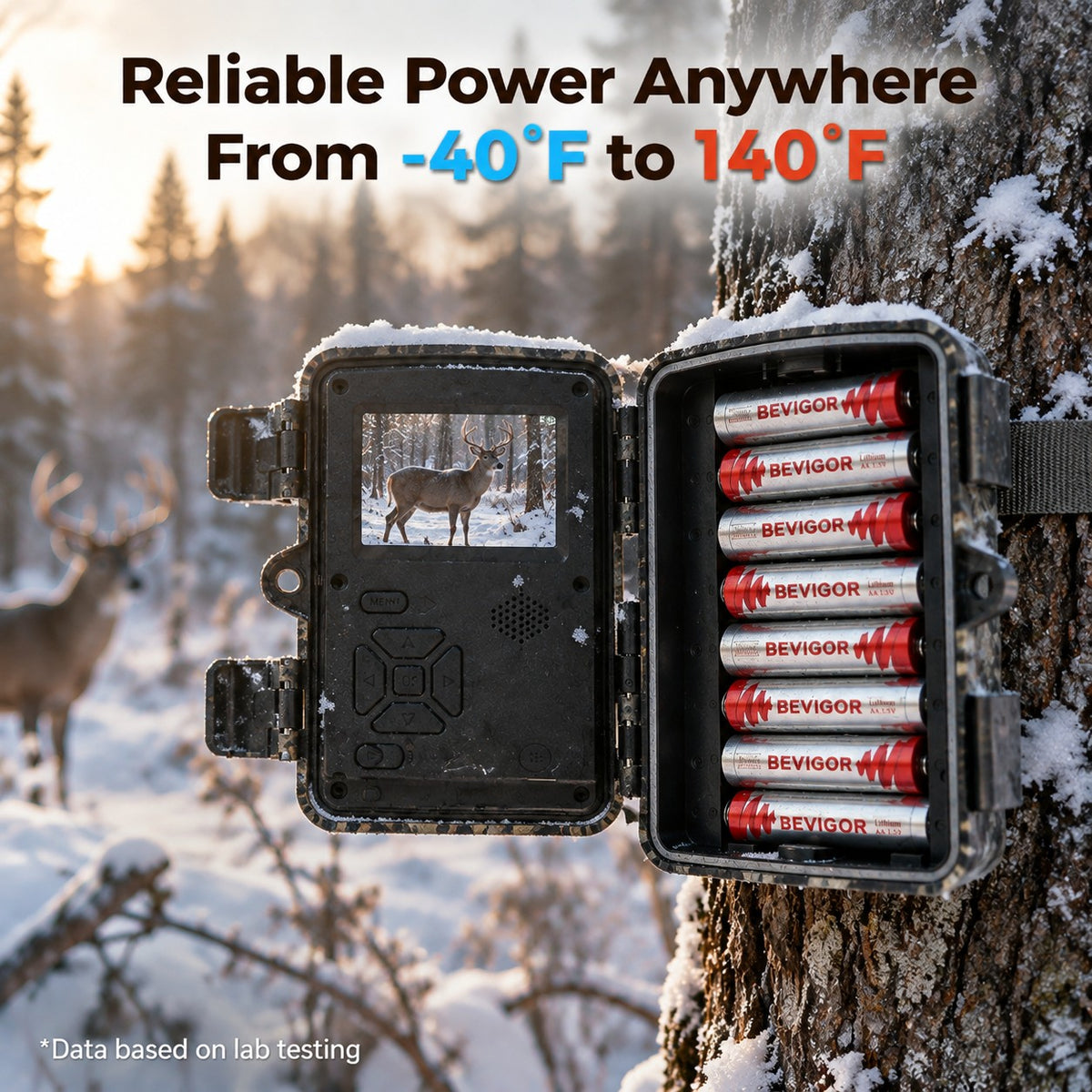
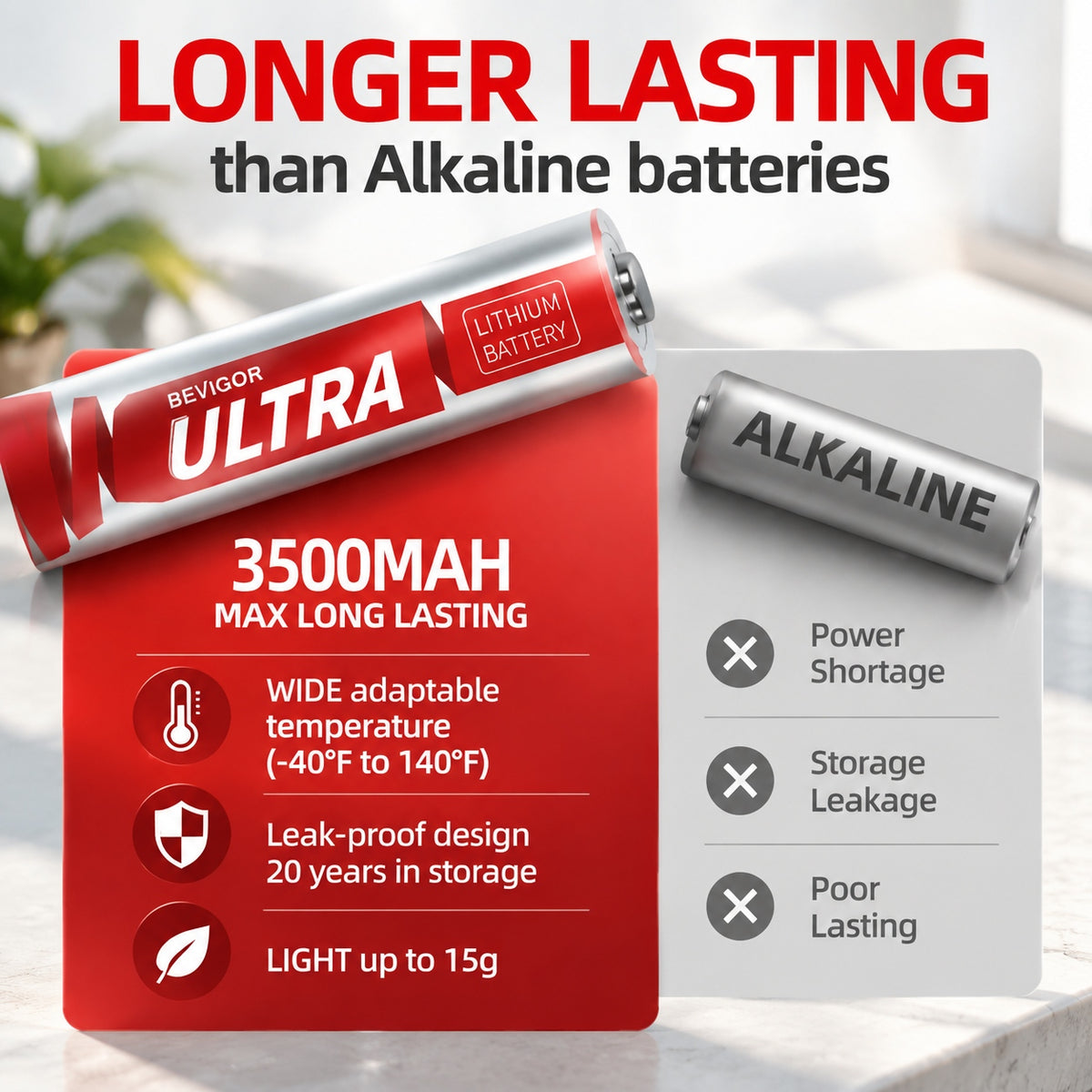
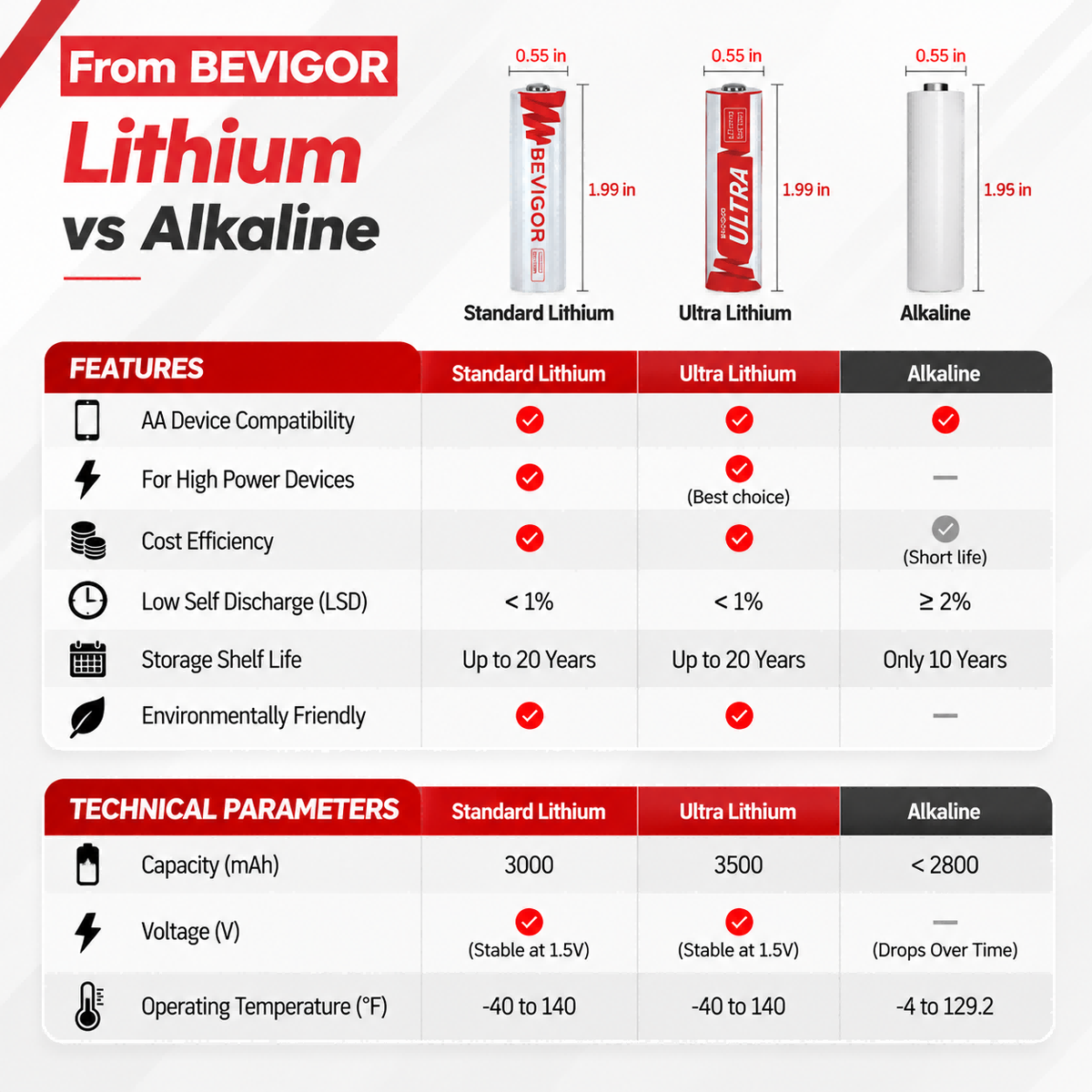
BEVIGOR offers 1.5V non-rechargeable lithium AA batteries in several pack sizes. BEVIGOR is not affiliated with or endorsed by Blink. Confirm that the battery size, chemistry, voltage, and non-rechargeable designation match Blink’s current requirements for your exact camera before ordering or installing any replacement.
For related battery and troubleshooting articles, browse the BEVIGOR Blink Cameras series.
Frequently Asked Questions
Why does my Blink camera flash red every three seconds?
On Blink Outdoor and Indoor (3rd Gen), XT2, and XT cameras, a quick red flash every three seconds indicates that the camera is disconnected from the internet. Check the Blink app, Sync Module status, Wi-Fi, and any recently changed network credentials.
Are five red flashes normal after replacing Blink camera batteries?
On Blink Outdoor and Indoor (3rd Gen), XT2, and XT cameras, five long red flashes immediately after inserting batteries are part of the startup sequence. A short flash every three seconds can follow until the camera connects. By contrast, five or six red flashes after the blue recording light goes out are identified by Blink as a failing-battery pattern on those models.
Does a red light always mean the new batteries are bad?
No. Depending on the model, red can indicate setup mode, a lost internet connection, normal startup, motion detection, or a battery warning. Identify the model and pattern before replacing the batteries again.
Can I use alkaline or rechargeable batteries in a Blink camera?
Follow the current requirement for your exact model. Blink states that its named battery-powered cameras are designed for AA 1.5-volt lithium non-rechargeable batteries. AA cells with other chemistries or voltages may fit physically but are not necessarily interchangeable.
Should I reset my Blink camera when it keeps flashing red?
Not as the first step. Identify the LED pattern, check power and connectivity, and follow Blink’s model-specific setup or offline instructions. Use a reset only when the official procedure for your model calls for it.
What if the camera shows no expected LED pattern with new batteries?
Confirm the model’s power requirement, polarity, and installation, then perform the recommended five-second power cycle. If the expected startup pattern still does not appear, or if the light stays solid red, contact Blink Support.






Share:
Blink Camera Battery Replacement: The Correct Battery Type and Step-by-Step Guide
Can You Use Rechargeable Batteries in Blink Cameras?